
WordPress Tools
Free WordPress Health Check: How to Scan Your Site for Performance, Security & Configuration Issues
Your WordPress site might look fine on the surface — but slow load times, missing security headers, and configuration problems could be quietly costing you rankings and visitors. Here’s how to find out in 30 seconds.
March 30, 2026 • 8 min read • WP Tutoring Team
Table of Contents
- Why Your WordPress Site Needs a Health Check
- What the WordPress Health Check Scans For
- How to Run a Free WordPress Health Check
- Performance: Is Your Site Fast Enough?
- Security: Are You Leaving the Front Door Open?
- Configuration: Is WordPress Set Up Correctly?
- What to Do After Your Health Check
- Frequently Asked Questions
Most WordPress site owners don’t realize there’s a problem until it’s already affecting their business — a slow-loading page that’s bleeding visitors, a missing security header that search engines penalize, or an outdated WordPress version quietly exposing the site to known vulnerabilities.
The truth is that a WordPress site can look perfectly normal to you while underperforming in every metric that actually matters — search rankings, Core Web Vitals, security posture, and technical SEO signals.
That’s why we built the WordPress Health Check — a free tool that scans your site’s performance, security, and configuration in seconds, without requiring login credentials or plugin installation.
Scan Your WordPress Site — Free
No login required. Get a full performance, security, and configuration report in under 30 seconds.
Why Your WordPress Site Needs a Health Check
WordPress powers over 40% of the web, which makes it both the most popular CMS in the world and the biggest target for performance issues, security exploits, and configuration drift. Even well-maintained sites develop problems over time.
Here’s what typically goes wrong — silently:
- Plugin updates bloat page size — Each update can add CSS, JavaScript, and database queries. Over months, your once-fast site crawls.
- Security headers get misconfigured — A hosting migration or server update can silently remove headers that protect against XSS, clickjacking, and content sniffing.
- WordPress version info gets exposed — Attackers use automated scanners to find sites running outdated WordPress versions. If your version is visible, you’re a target.
- REST API endpoints leak data — The WordPress REST API can expose user information, content drafts, and site structure if not properly configured.
- HTTPS issues go unnoticed — Mixed content warnings, expired certificates, and improper redirects hurt both SEO and user trust.
A regular health check catches these issues before they compound into real damage — lost traffic, poor rankings, or a compromised site.
Pro Tip: Google’s Core Web Vitals directly impact search rankings. A site that loads in 4+ seconds doesn’t just frustrate visitors — it gets pushed down in search results. A health check tells you exactly where your bottlenecks are.
What the WordPress Health Check Scans For
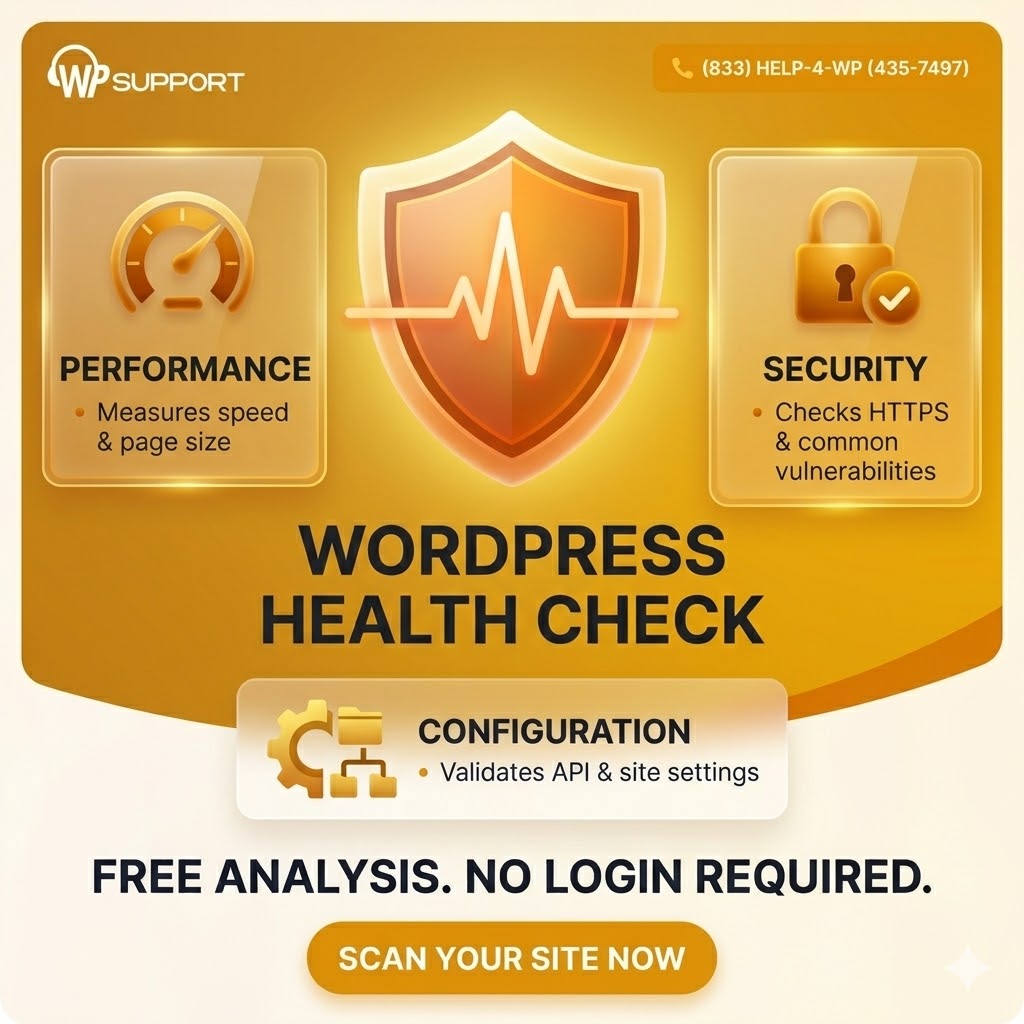
The WP Tutoring Health Check tool evaluates your site across three critical categories:
Performance
Measures response time, page size, and server configuration to identify bottlenecks slowing down your site and hurting your search rankings.
Security
Checks HTTPS setup, security headers, exposed version info, and common misconfigurations that leave your site vulnerable to attacks.
Configuration
Validates WordPress version detection, REST API accessibility, and essential site settings for a healthy, properly configured installation.
Each category produces actionable results — not vague scores, but specific issues with clear implications.
How to Run a Free WordPress Health Check
Running a health check takes less than a minute:
- Go to the WordPress Health Check tool
- Enter your website URL — just your domain, nothing else
- Click “Scan Site”
- Review your results across performance, security, and configuration
That’s it. No account creation, no login credentials, no plugin to install. The tool scans your site externally — the same way Google’s crawlers and attackers see it — which is exactly the perspective that matters.
Why external scanning matters: Your site might load fast on your computer because your browser caches assets. An external scan shows you what a first-time visitor (or Googlebot) actually experiences.
Performance: Is Your Site Fast Enough?
The performance scan measures three things that directly affect your search rankings and user experience:
Response Time
How long does your server take to respond to a request? Google recommends a Time to First Byte (TTFB) under 200ms. If your server takes 800ms+ just to start responding, visitors are already bouncing before your content loads.
Common culprits: underpowered shared hosting, unoptimized database queries from bloated plugins, missing server-side caching.
Page Size
Total page weight including HTML, CSS, JavaScript, images, and fonts. Pages over 3MB load noticeably slower on mobile connections — and mobile accounts for over 60% of web traffic.
Common culprits: uncompressed images, render-blocking JavaScript from unused plugins, multiple Google Fonts loaded in the header.
Server Configuration
Is your server using HTTP/2? Is compression enabled? Are static assets being cached with proper headers? These are invisible to most site owners but have a measurable impact on load time.
Red flag: If your total page load time exceeds 3 seconds, you’re losing roughly 53% of mobile visitors before they ever see your content (Google research). Every additional second costs another 10-20% of potential conversions.
Security: Are You Leaving the Front Door Open?
WordPress security isn’t just about preventing hacks — it’s about protecting your search rankings, your visitors’ data, and your reputation. The security scan checks for the most common exposures:
HTTPS Configuration
Is your SSL certificate valid and properly installed? Are all pages redirecting from HTTP to HTTPS? Is there mixed content (HTTP resources loaded on HTTPS pages)? Google has used HTTPS as a ranking signal since 2014, and browsers now flag HTTP sites as “Not Secure.”
Security Headers
Security headers tell browsers how to handle your content. Missing headers leave your site vulnerable to common attacks:
- X-Content-Type-Options — Prevents MIME-type sniffing attacks
- X-Frame-Options — Prevents your site from being embedded in malicious iframes (clickjacking)
- Content-Security-Policy — Controls which resources the browser is allowed to load
- Strict-Transport-Security — Forces HTTPS connections and prevents downgrade attacks
Most WordPress sites are missing at least two of these headers. The fix is usually a few lines in your .htaccess file or a hosting configuration change.
Exposed Version Information
By default, WordPress adds a version meta tag to your site’s HTML and exposes version info through the REST API. If you’re running WordPress 6.4 and a critical vulnerability is announced for that version, attackers can find your site in minutes using automated scanners.
Is Your Site Secure? Find Out Now
The health check reveals security gaps you can’t see by just visiting your site.
Configuration: Is WordPress Set Up Correctly?
Even experienced WordPress users miss configuration details that affect SEO and functionality. The configuration scan validates:
WordPress Version Detection
Is your site running the latest WordPress version? Outdated versions miss security patches, performance improvements, and new features. The scan identifies your version and flags it if it’s behind.
REST API Accessibility
The WordPress REST API powers many plugins and features, but it can also expose information it shouldn’t. The scan checks whether your REST API is properly accessible for legitimate use while not leaking sensitive data like user lists.
Essential Site Settings
Basic but critical settings that are surprisingly easy to misconfigure:
- Is search engine visibility accidentally set to “discourage search engines”?
- Are your permalinks structured for SEO (pretty URLs vs. ?p=123)?
- Is your site URL consistent (www vs. non-www, trailing slash)?
- Is XML sitemap accessible and properly formatted?
True story: We’ve seen sites lose months of SEO progress because someone checked “Discourage search engines from indexing this site” in Settings → Reading during a staging migration and forgot to uncheck it when going live. A health check catches this instantly.
What to Do After Your Health Check
Once you’ve run the scan, you’ll have a clear picture of where your site stands. Here’s how to prioritize fixes:
1. Fix Security Issues First
Security vulnerabilities have the highest downside risk. Missing HTTPS, exposed version info, and absent security headers should be addressed immediately. Most security fixes take under an hour for someone who knows their way around WordPress.
2. Address Performance Bottlenecks
Start with the biggest wins: server response time (usually a hosting or caching issue), image compression, and removing unused plugins/scripts. These changes have the most visible impact on both user experience and search rankings.
3. Clean Up Configuration
Configuration issues are usually quick fixes — updating WordPress core, adjusting permalink settings, or fixing REST API exposure. They’re lower urgency but easy to knock out.
4. Schedule Regular Check-Ups
Your site changes constantly — plugin updates, content additions, hosting changes. Run a health check at least once a month and after any major change (plugin update, hosting migration, theme switch).
Need Help Fixing What the Scan Finds?
If the health check reveals issues you’re not sure how to fix, that’s exactly what we’re here for. WP Tutoring has been helping WordPress users since 2012 with one-on-one tutoring, group training, and professional maintenance plans. You don’t need to figure it out alone.
Frequently Asked Questions
What is a WordPress health check?
A WordPress health check is an automated scan that evaluates your website’s performance, security, and configuration. It identifies issues that could be hurting your search rankings, slowing page load times, or exposing your site to security threats — without requiring any login access or plugin installation.
Do I need to give my login credentials to run the scan?
No. The WP Tutoring WordPress Health Check scans your site externally — the same way Google and other crawlers see it. You don’t need to provide any login credentials, install a plugin, or give admin access. Just enter your URL and click scan.
How often should I run a WordPress health check?
We recommend running a health check at least once a month as part of your regular WordPress maintenance routine. You should also run one after any major change: plugin or theme updates, hosting migrations, WordPress core updates, or adding new functionality to your site.
Is the WordPress Health Check tool free?
Yes, completely free with no account registration required. There are no usage limits, no premium tiers, and no upsell walls. If you need help fixing issues the scan finds, WP Tutoring offers professional WordPress support — but the tool itself is 100% free.
What do I do if my site fails the health check?
Review the specific issues flagged in each category. Many have straightforward fixes you can handle yourself — adding a security header, compressing images, or updating WordPress core. For anything you’re unsure about, contact WP Tutoring for one-on-one help. We offer both individual tutoring sessions and ongoing maintenance plans starting at $69/month.
Will the scan slow down my site while it’s running?
No. The health check makes a small number of standard HTTP requests to your site — similar to a normal visitor loading your page. It won’t cause any noticeable load on your server or affect your visitors’ experience.
Does this replace a full security audit?
The health check catches the most common and impactful issues visible from the outside. For a comprehensive security audit — including file-level malware scanning, database analysis, and user permission reviews — you’d want a full WordPress maintenance plan that includes regular internal security monitoring.
Your WordPress Site
Deserves a Checkup
Scan performance, security, and configuration in seconds — free, no login required.
Related WordPress Resources
WordPress Tutoring — One-on-One Help
Get personalized WordPress training with an expert tutor. Learn at your pace, on your own site.
WordPress Training for Businesses
Group training sessions for your team. Customized curriculum for your industry and WordPress setup.
WordPress Maintenance Plans
Ongoing care starting at $69/month — updates, security monitoring, backups, and priority support.


Copyright ByRivers Tech LLC/ WP-Tutoring.Com All Rights Reserved.
