The WordPress Block Editor love it or hate it In December of 2018, the new editing experience for WordPress, was...

The WordPress Block Editor love it or hate it In December of 2018, the new editing experience for WordPress, was...
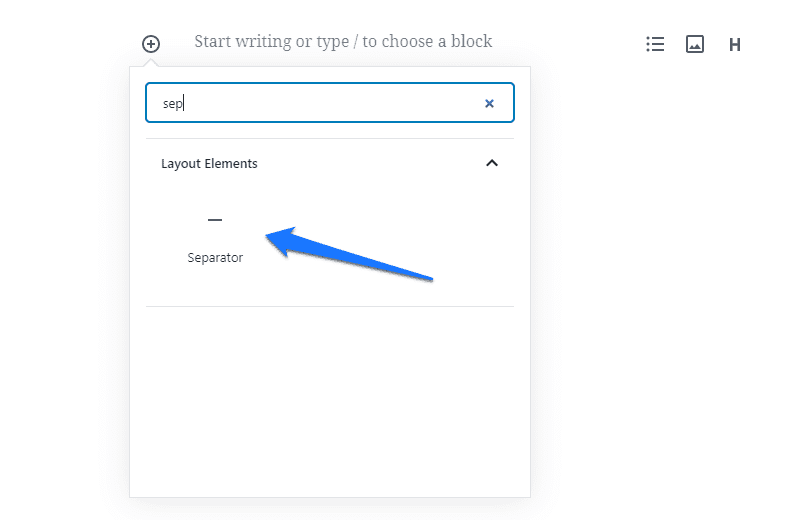
Step 1Hover your mouse over the Add Block icon (the plus sign in the upper left hand corner within the Gutenberg...
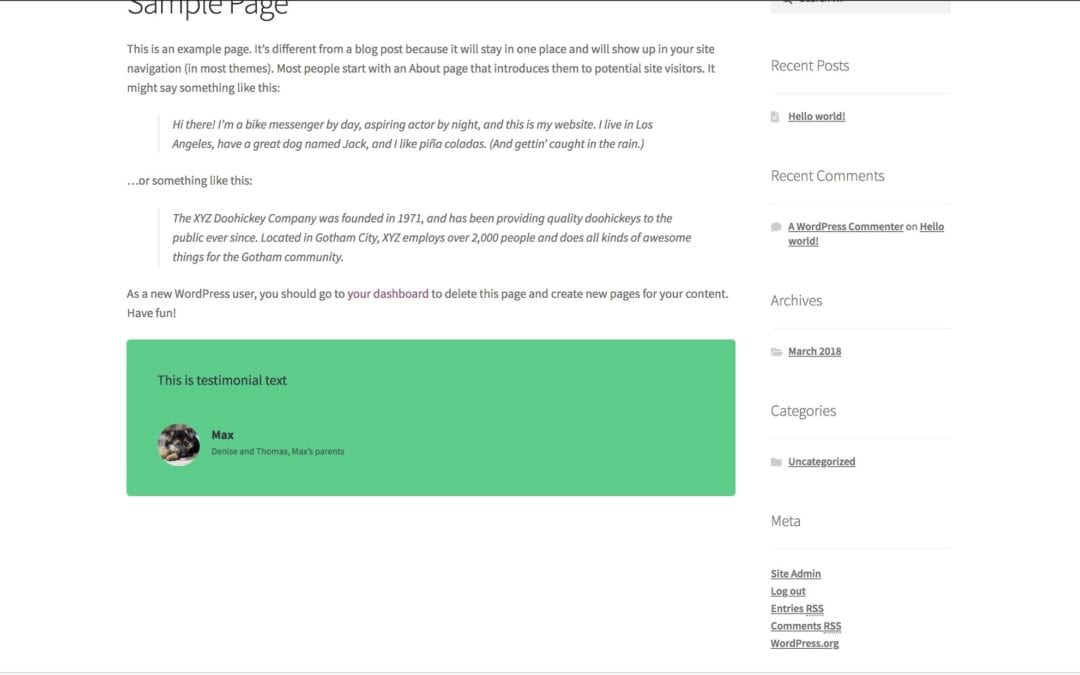
Step 1First select the page where you want your testimonials to appear. Click on the plus sign icon in the upper left...
A quote block allows you to give quoted text visual emphasis. This is a great way to show visual difference in...
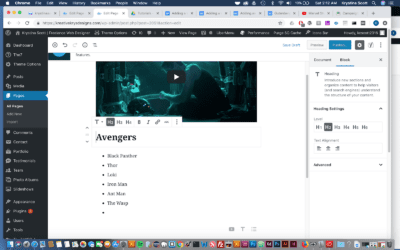
Step 1- Hover your mouse over the Add Block icon (the plus sign in the upper left hand corner within the Gutenberg...
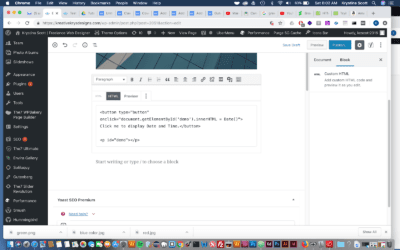
A custom HTML block allows you to add HTML to Gutenberg and preview it as you edit. Those who have used the...
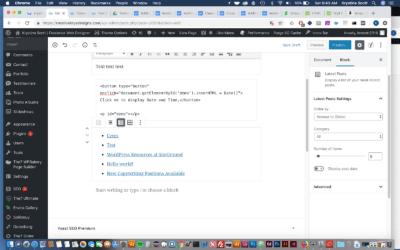
Adding the latest posts block to Gutenberg allows you to display a list of your most recent posts. This...
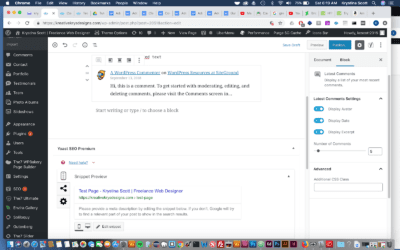
A latest comments block allows you to display a list of your most recent blog post comments. This is essentially the...
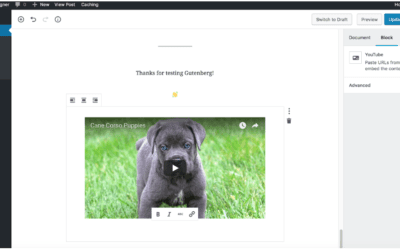
Embedding Youtube and Vimeo videos in Gutenberg is even easier than it was with the classic WordPress editor. ...
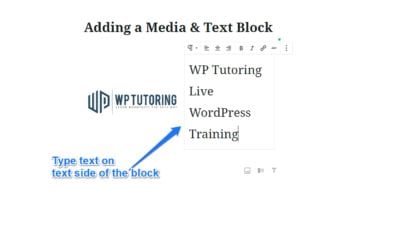
AKA - placing text beside an image in WordPress 5.0 This is the block that we've all been waiting for! For...
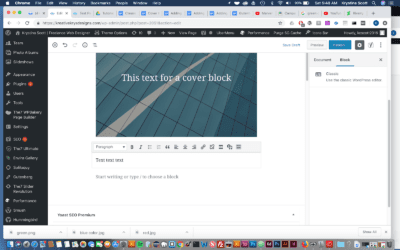
The classic block allows you to use the familiar classic WordPress editor within a Gutenberg block. If you...
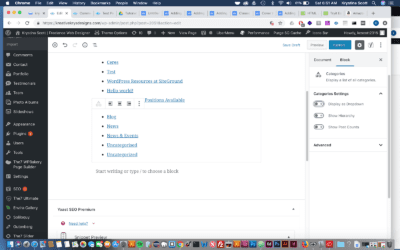
A category block allows you to display a list of all of your post categories. Think of this as a block version of the...
View our FREE WordPress 6.4 Course. Learn about the exciting new features available in this release!