
Wordpress Info You Can Use
Wordpress Information for WP Users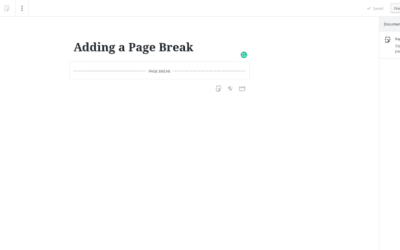
Adding a Page Break in Gutenberg- WordPress 5.0
Adding a Page Break in the Gutenberg Editor can be a great way to break up long content. Step 1 - In the block selector under the Layout Category choose Page Break Step 2 - You'll now have a line that you can use to separate your content into a multi-page experience. ...
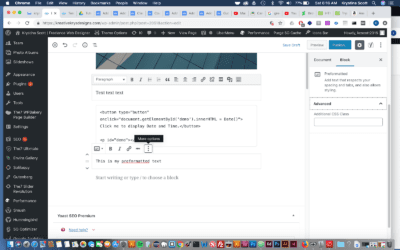
Adding Preformatted Text to Gutenberg- WordPress 5.0
A preformatted block allows you to add text that respects your spacing and tabs, and also allows particular styling. Step 1- Hover your mouse over the Add Block icon (the plus sign in the upper left hand corner within the Gutenberg editor). Scroll to Formatting....
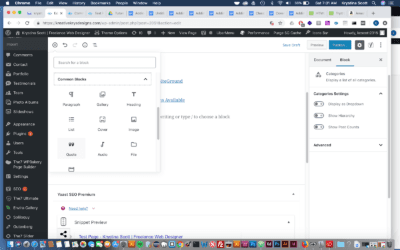
Adding a Quote in Gutenberg- WordPress 5.0
A quote block allows you to give quoted text visual emphasis. This is a great way to show visual difference in your content and make reading more interesting. Step 1- Hover your mouse over the Add Block icon (the plus sign in the upper left hand corner within...
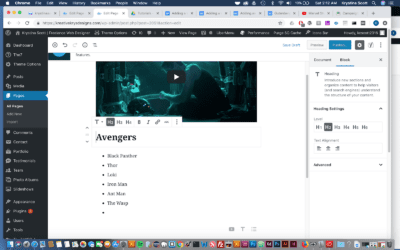
Adding a Heading to Gutenberg – WordPress 5.0
Step 1- Hover your mouse over the Add Block icon (the plus sign in the upper left hand corner within the Gutenberg editor). Scroll to Common Blocks. Select Heading. Choosing the Heading Block from the Common Blocks Setting Step 2 -A heading block with appear. Enter...
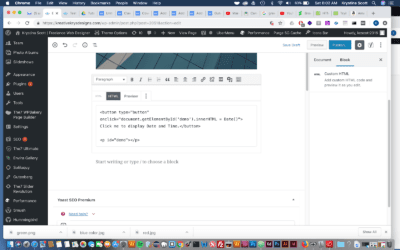
Adding HTML to Gutenberg – WordPress 5.0
A custom HTML block allows you to add HTML to Gutenberg and preview it as you edit. Those who have used the classic editor should remember the 'text' tab. This essentially recreates this as a block. Step 1 - Hover your mouse over the Add Block icon (the...
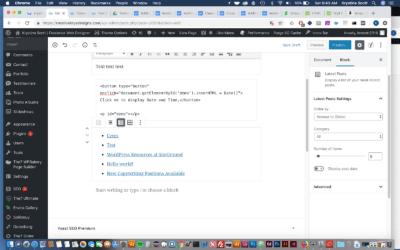
Adding the Latest Posts Block to Gutenberg- WordPress 5.0
Adding the latest posts block to Gutenberg allows you to display a list of your most recent posts. This effectively replaces the Recent Posts Widget. Step 1- Hover your mouse over the Add Block icon (the plus sign in the upper left hand corner within the...
Adding a List Block to Gutenberg WordPress 5.0
List Blocks allows you to add numbered and bulleted lists to your pages. This is a handy block that helps make your content a little more readable. Step 1- Hover your mouse over the Add Block icon (the plus sign in the upper left hand corner within the Gutenberg...
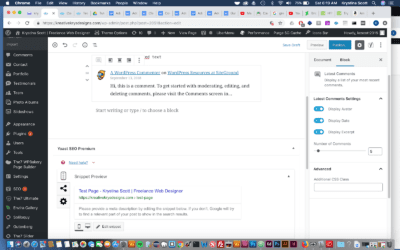
Adding Latest Comments to Gutenberg – WordPress 5.0
A latest comments block allows you to display a list of your most recent blog post comments. This is essentially the Recent Comments Widget available to you in a block that can be added anywhere in the content of your post. Step 1- Hover your mouse over the Add Block...

Our One on One WordPress Training Works!
For over 13 years we have helped many site owners and businesses learn how to use WordPress more effectively.
Whether you are a beginner or just someone who needs help because they are “stuck” – we can help you.
One on one training is the most effective type of training for WordPress because it allows you to ask the types of questions that will solidify your understanding and help you grow your audience, sell your product, or gain more customers.
We help with everything from simple WordPress blogs to complex WordPress Multisite issues.
Some of our One on One Clients: