
Wordpress Info You Can Use
Wordpress Information for WP Users
The WordPress Block Editor – Is it Time to Switch?
The WordPress Block Editor love it or hate it In December of 2018, the new editing experience for WordPress, was introduced. It instantly caused polarization in the WordPress community because it was replacing a tried and true Microsoft Office inspired editor named...

Top 10 Elementor Themes
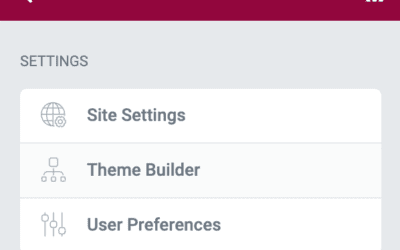
Theme 1: Hello Theme The Hello theme is a free starter theme that works well with elementor and does not require tons of coding. Hello Theme is really light weight which makes the site load faster because all of the design is with done with the theme builder which is...
Elementor Help and Training by WP-Tutoring.com
Elementor help is just a call away Elementor has taken the world by storm and it has redefined the way people design their WordPress sites. Elementor makes things easier for site creators because: Elementor works with practically any themeElementor provides a WSYWIG...

Creating a new post
The whole purpose of having an amazing WordPress site is to be able to create content. Here is the process of creating a new post in WP. Step 1Click the Posts menu in the WordPress Dashboard Navigation menu. Click Add New link from the Posts menu in the left-hand side...
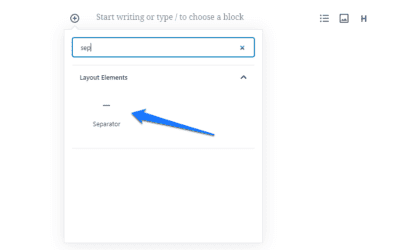
How to Add a Separator Block in WordPress
Step 1Hover your mouse over the Add Block icon (the plus sign in the upper left hand corner within the Gutenberg editor). Scroll to Layout Elements. Select Seperator Block.Step 2The Separator block will appear. You’ll see a short line. On the right, you will see a...
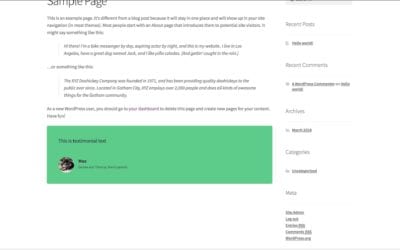
Adding Testimonials in Gutenberg
Step 1First select the page where you want your testimonials to appear. Click on the plus sign icon in the upper left hand corner. From there, select the Atomic Icons from the drop down menu. Click on AB Testimonial.Step 2Enter the text you would like to use. Select...
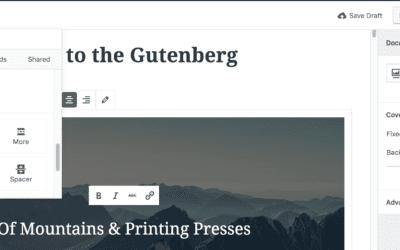
Adding a Button in Gutenberg
https://youtu.be/90w6UjpvYso Step 1Hover your mouse over the Add Block icon (the plus sign in the upper left hand corner within the Gutenberg editor).Step 2 Select Blocks. Then scroll to Layout Elements. Under that section you will see Button. Select Button.Hint: You...
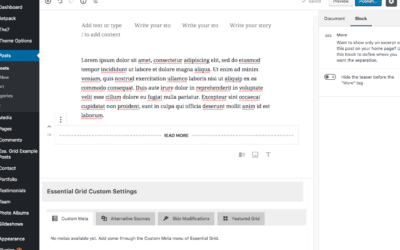
Using the More Block in Gutenberg
The "more" block is used when you want to include a short introduction of piece of content on a page or post. It will help create separation from the rest of your content. Step 1Step 1 First go to the page where you would like to add the more block. Click on the plus...

Our One on One WordPress Training Works!
For over 13 years we have helped many site owners and businesses learn how to use WordPress more effectively.
Whether you are a beginner or just someone who needs help because they are “stuck” – we can help you.
One on one training is the most effective type of training for WordPress because it allows you to ask the types of questions that will solidify your understanding and help you grow your audience, sell your product, or gain more customers.
We help with everything from simple WordPress blogs to complex WordPress Multisite issues.
Some of our One on One Clients: