
Wordpress Info You Can Use
Wordpress Information for WP Users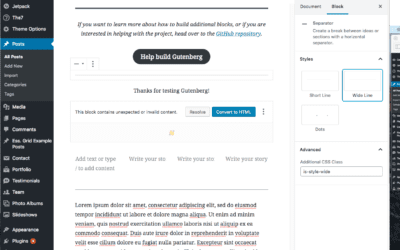
Using the Separator Block in Gutenberg
The Separator block is used when you want to create a break of ideas or sections with a horizontal separator. Step 1First go to the page where you would like to add the separator. Click on the plus sign icon in the upper left hand corner. From there, select the Layout...
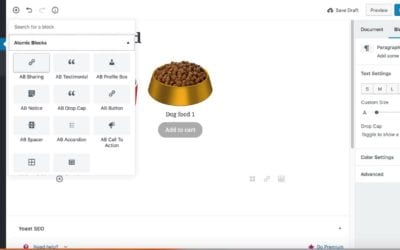
How to use Gutenberg Products Block
If you have an woocommerce website, you may want to allow customers a preview of products you’re selling. A products block would be ideal for you to use. The products block is similar to the products short code. The Products block allows you to insert any...
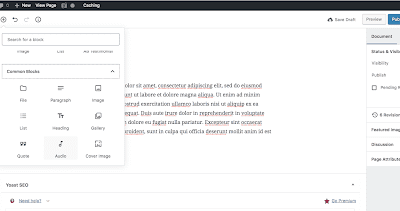
Adding an audio file in Gutenberg
https://youtu.be/Bd47W9lqal0 View the above video to see how to add an audio file in WordPress Step 1Hover your mouse over the Add Block icon (the plus sign in the upper left hand corner within the Gutenberg editor).Step 2Select Blocks. Then scroll to Common Blocks....
Adding a table in Gutenberg
Step 1Hover your mouse over the Add Block icon (the plus sign in the upper left hand corner within the Gutenberg editor).Step 2Select Blocks. Then scroll to Format. Under that section you will see Table. Select Table.Hint: You can also type “table” in the search bar...
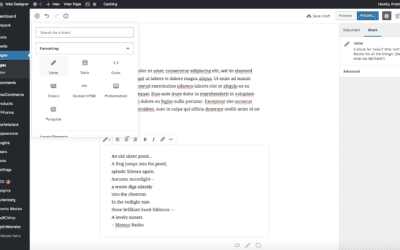
Adding a Verse in Gutenberg
Step 1Hover your mouse over the Add Block icon (the plus sign in the upperleft hand corner within the Gutenberg editor).Step 2Select Blocks. Then scroll to Formatting. Under that section you will see Verse. Select Verse.Hint: You can also type “verse” in the search...
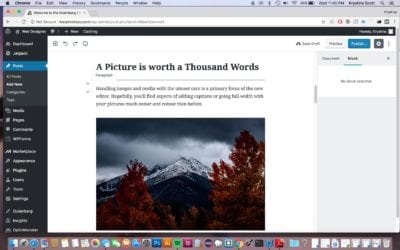
Moving a Block in Gutenberg
Step 1First hover your cursor over the block you would like to move. When you hover a block, you will see arrows on the left side of the block. The arrows will allow you to adjust your blocks (clicking the up arrow will move it up by one space, click the down arrow...
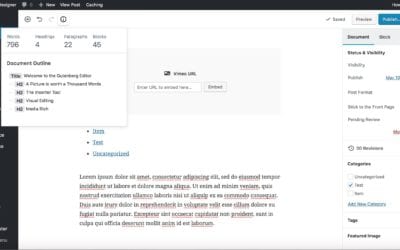
Getting an Article’s Word Count in Gutenberg
Step 1Hover your mouse over the information icon(the circle with an “i” inside of it.). When you click on it, you will get information about your page (headings used, word count, paragraphs, etc.) This is a really handy tool as you're creating your amazing...
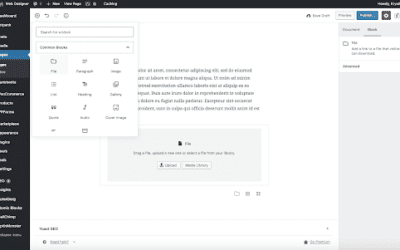
Adding a file in Gutenberg
Step 1Hover your mouse over the Add Block icon (the plus sign in the upper left hand corner within the Gutenberg editor).Step 2Select Blocks. Then scroll to Common Blocks. Under that section you will see File. Select File.Hint: You can also type “file” in the search...

Our One on One WordPress Training Works!
For over 13 years we have helped many site owners and businesses learn how to use WordPress more effectively.
Whether you are a beginner or just someone who needs help because they are “stuck” – we can help you.
One on one training is the most effective type of training for WordPress because it allows you to ask the types of questions that will solidify your understanding and help you grow your audience, sell your product, or gain more customers.
We help with everything from simple WordPress blogs to complex WordPress Multisite issues.
Some of our One on One Clients: