WordPress Tutorials for Beginners and Intermediate Users

We have provided multiple WordPress tutorials for you to get step by step instructions on how to do common things in WordPress.  Refer back to this page often as we will have WP Tutoring content updated weekly.
View our online WordPress Tutorial and video.

Need Live WordPress Tutoring and Training? - Click Here

WordPress 5.5 – The best edition yet.

WordPress 5.5 – The best edition yet.

WordPress 5.5 is rolling out a new update on August 11, 2020. The core software is still in development but you can take a look and test it out via the beta test version. If you plan on testing it out, it’s best practice to perform a backup of your website before...

read more

Privacy Policy Tool in WordPress

Privacy Policy Tool in WordPress

To protect yourself, your business, and the data of your website’s visitors it’s highly recommended to place a privacy policy on your website. The Privacy Policy Tool in WordPress will help you and your website visitors understand all the ways your website collects...

read more

How to use WordPress Health Check

How to use WordPress Health Check

Use our FREE WordPress Website Health Check Tool at https://wp.support/tools/wordpress-health-check Ever encountered a WordPress issue and have no idea on how to start? Wish you could pinpoint where the exact issue is without having to spend hours investigating? A...

read more

OVER 13 Places to get Gutenberg Blocks for WordPress 5.0

OVER 13 Places to get Gutenberg Blocks for WordPress 5.0

Gutenberg Blocks for WordPress 5.0 Gutenberg is here and many people have started using it for their online editing experience.  Out of the box, there are alot of great blocks build into Gutenberg, but there are bound to be some times where you're looking for a...

read more
Adding a Code Block to Gutenberg- WordPress 5.0

Adding a Code Block to Gutenberg- WordPress 5.0

There may be some times when you want to show some computer code to your readers.  In the past that may have been hit or miss because the code may have executable instructions in it that would make the formatting inconsistent.  The Code Block in Gutenberg...

read more
Adding the Archive Widget to Gutenberg- WordPress 5.0

Adding the Archive Widget to Gutenberg- WordPress 5.0

The archive block places a listing of the archived posts on your site.   Step 1- Choose the archive block by either typing into the search bar or scrolling down to the "widgets" category in the block selector. Choose the Archive B``lock underneath the...

read more

Adding a Page Break in Gutenberg- WordPress 5.0

Adding a Page Break in Gutenberg- WordPress 5.0

Adding a Page Break in the Gutenberg Editor can be a great way to break up long content. Step 1 - In the block selector under the Layout Category choose Page Break Step 2 - You'll now have a line that you can use to separate your content into a multi-page experience. ...

read more

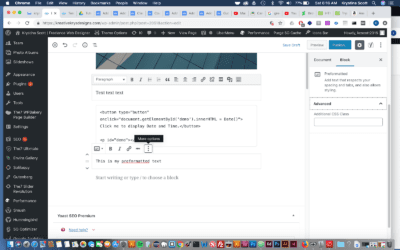
Adding Preformatted Text to Gutenberg- WordPress 5.0

Adding Preformatted Text to Gutenberg- WordPress 5.0

A preformatted block allows you to add text that respects your spacing and tabs, and also allows particular styling. Step 1-  Hover your mouse over the Add Block icon (the plus sign in the upper left hand corner within the Gutenberg editor). Scroll to Formatting....

read more

Adding a Quote in Gutenberg- WordPress 5.0

Adding a Quote in Gutenberg- WordPress 5.0

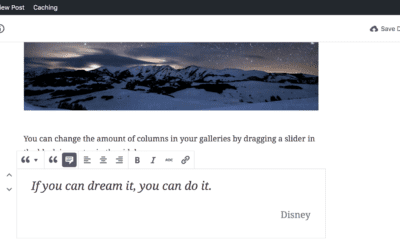
A quote block allows you to give quoted text visual emphasis.  This is a great way to show visual difference in your content and make reading more interesting. Step 1- Hover your mouse over the Add Block icon (the plus sign in the upper left hand corner within...

read more

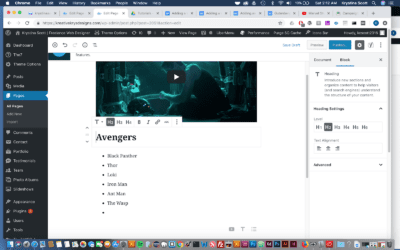
Adding a Heading to Gutenberg – WordPress 5.0

Adding a Heading to Gutenberg – WordPress 5.0

Step 1- Hover your mouse over the Add Block icon (the plus sign in the upper left hand corner within the Gutenberg editor). Scroll to Common Blocks. Select Heading. Choosing the Heading Block from the Common Blocks Setting Step 2 -A heading block with appear. Enter...

read more
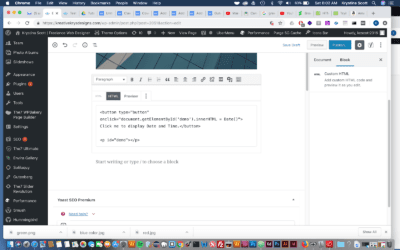
Adding HTML to Gutenberg – WordPress 5.0

Adding HTML to Gutenberg – WordPress 5.0

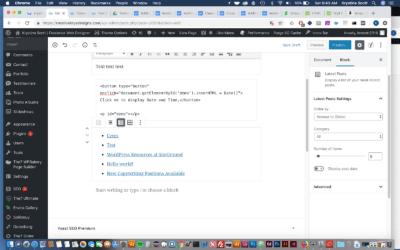
A custom HTML block allows you to add HTML to Gutenberg and preview it as you edit.  Those who have used the classic editor should remember the 'text' tab.  This essentially recreates this as a block. Step 1 - Hover your mouse over the Add Block icon (the...

read more
Adding Latest Comments to Gutenberg – WordPress 5.0

Adding Latest Comments to Gutenberg – WordPress 5.0

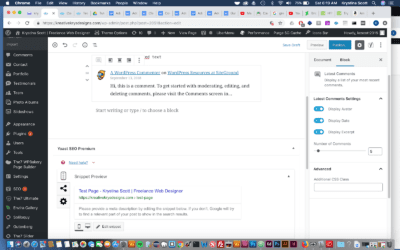
A latest comments block allows you to display a list of your most recent blog post comments.  This is essentially the Recent Comments Widget available to you in a block that can be added anywhere in the content of your post. Step 1- Hover your mouse over the Add Block...

read more
Adding a Media & Text Block in Gutenberg

Adding a Media & Text Block in Gutenberg

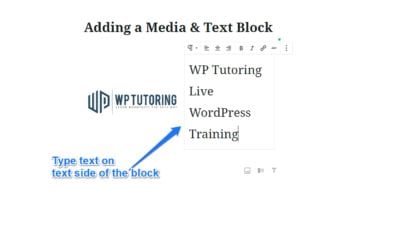
AKA - placing text beside an image in WordPress 5.0 This is the block that we've all been waiting for!  For anyone who has been using the Gutenberg editor, placing text beside an image or video was extremely frustrating and difficult. In fact there was a...

read more
Using the Classic Block in Gutenberg

Using the Classic Block in Gutenberg

The classic block allows you to use the familiar classic WordPress editor within a Gutenberg block.  If you convert a post from the Classic Editor,( pre WordPress 5.0), to Gutenberg, your whole post will show up in one Classic Block.  This...

read more
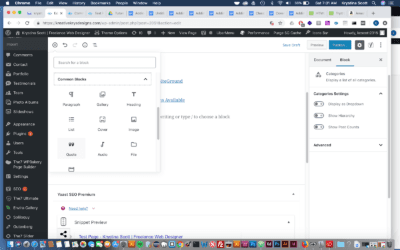
Adding a Category Block in Gutenberg

Adding a Category Block in Gutenberg

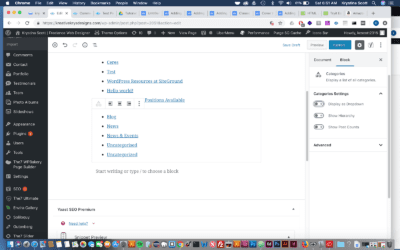
A category block allows you to display a list of all of your post categories. Think of this as a block version of the popular category widget. Step 1- Hover your mouse over the Add Block icon (the plus sign in the upper left hand corner within the Gutenberg...

read more
Adding a Cover Block in Gutenberg

Adding a Cover Block in Gutenberg

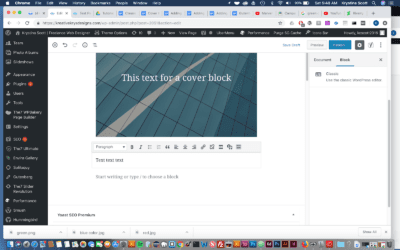
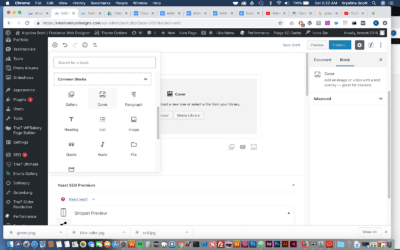
A cover block is a great option to use as a header for your content. You can add an image or video with a text overlay. Step 1- Hover your mouse over the Add Block icon (the plus sign in the upper left hand corner within the Gutenberg editor). Scroll to Common...

read more

Enjoying our WordPress Tutorials? You'll love our one - on - one Training

Gutenberg – Adding an Image to the paragraph block

Gutenberg – Adding an Image to the paragraph block

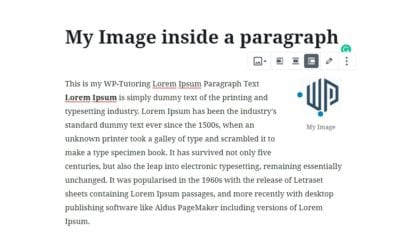
Thanks to Jeff Chandler of WP Tavern for this solution.  Adding an image to the paragraph block can be extremely frustrating because it is not a straightforward process.  Follow the steps below to pull it off. Step 1 - Write Your paragraph(s) using the...

read more
Adding paragraph text in Gutenberg

Adding paragraph text in Gutenberg

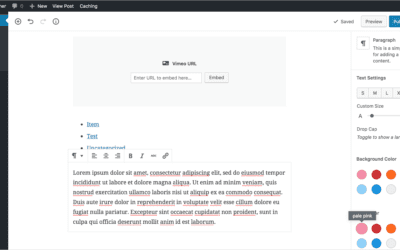
Gutenberg introduces a great way for you to add paragraph text.  You can use blocks to better separate and organize your content.  Also using blocks, you can easily move content around. Step 1 Hover your mouse over the Add Block icon (the plus sign in the...

read more
Adding pull quotes in Gutenberg

Adding pull quotes in Gutenberg

Pull Quotes are an important feature in many online publishing platforms.  In the new Gutenberg editor for WordPress, this is made really simple and intuitive.  The look of the pull quote on the front of your site is still determined by your particular theme setup,...

read more
Adding an Image in Gutenberg

Adding an Image in Gutenberg

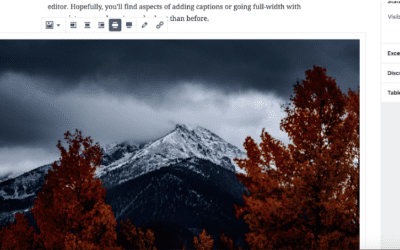
There are three ways to add images with Gutenberg: as an individual image, cover image, or an image gallery. 1. The first step is to click on Gutenberg 2. Click Add block (Plus Sign) 3. Click Image 4. Here you can upload a new image or add an image that has already...

read more
WordPress 5.0 Gutenberg – What is it?  How to Prepare

WordPress 5.0 Gutenberg – What is it? How to Prepare

If you’re a Wordpress developer, designer or owner of a Wordpress site, you’ve most likely heard about the upcoming Wordpress 5.0 update and the big changes it can bring. This update brought up questions such as: “What makes this update different from the others? How...

read more
What is WordPress

What is WordPress

What is Wordpress? Many people who are looking to create their first blog or business website hear about WordPress at some point or another. What is WordPress? Wordpress is a popular online, open source website tool for creating and managing websites. The tool is used...

read more
How to use the New Image Widget

How to use the New Image Widget

The New Image Widget enables WordPress users to quickly and easily add images to particular widget areas in their website theme. Using the New Image Widget makes it easier to enhance the visual appeal of your websites. For example, you can now tailor content focused...

read more
How to use the WP Video Widget

How to use the WP Video Widget

The Video Widget is finally here WordPress is continually improving the application with items that users are asking for.  One of the latest improvements that have popped up in WordPress 4.8 is a new video widget.  This widget has been highly anticipated, and we'll...

read more
How To Export WordPress Posts and Pages

How To Export WordPress Posts and Pages

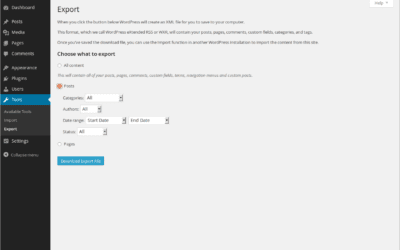
Exporting WordPress post and pages is very good for moving all of your page and post content to a new site or even just for backing up your material in case of any accidents. After exporting, WordPress will save all your content to an xml file that can be imported to...

read more
Setting a Featured Image in WordPress

Setting a Featured Image in WordPress

Setting a Featured Image Most WordPress Themes allow you to set a Featured image for pages and posts.  Sometimes they'll be called a Post/Page Thumbnail, and essentially it is a image that explains or adds information for a post or page. Step 1 - Go to Post or Page...

read more
WordPress User Activity Log Plugins

WordPress User Activity Log Plugins

Guide to WordPress User Activity Log Plugins WordPress user activity log plugins are designed to help website content managers track the activity of users on the site. Using these plugins, you will get a log or instant notifications whenever any user does something on...

read more
Do you have a WordPress Disaster Plan in Place?

Do you have a WordPress Disaster Plan in Place?

A WordPress Disaster Plan is Extremely Important Every now and again we get a frantic email from a WordPress user who needs help with getting their site restored from a hack, or another major issue.  The conversations after that go something like this - Us:  We're...

read more
Free WordPress Tutorial for Beginners Just Launched

Free WordPress Tutorial for Beginners Just Launched

Learn WordPress the Easy Way We've just launched a Free WordPress Tutorial for Beginners that shows WP "newbies" how WordPress works.  We've made an online tutorial showing how to login to WordPress and perform basic actions in WP.  We also have over 40 free WordPress...

read more
WordPress Updates Tutorial

WordPress Updates Tutorial

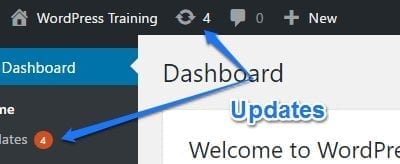
This past week saw 50,000+ WordPress sites hacked.  Why?  Lack of Updates. Let's find out how to update our sites. The WordPress Updates screen There are 3 areas in WordPress that need to be updated on a regular basis: How do I know when I need to update WordPress?...

read more
50 Essential WordPress Plugins

50 Essential WordPress Plugins

WORDPRESS SECURITY   The Sucuri Security plugin is  for security monitoring & malware detection. The SiteGurad WP Plugin is for protecting the management page and login.   3. iThemes Security is easy to use and  offers 30+ ways to Protect WordPress. 4.Anti-Malware...

read more
How to add social media icons to your WordPress site

How to add social media icons to your WordPress site

Socal Media is by far one of the best ways to get the word out about your great content or busiess news.  Let's make it easy for others to promote your mssage by adding social media to your site via the "Add to Any" plugin. STEP 1 The first step is to open Dashboard ‹...

read more

We have been Tutoring WordPress Users Since 2012 - Get Live Help!!

Adding a Category to a WordPress Menu

Adding a Category to a WordPress Menu

If we need to add a Category to the WordPress menu, we can follow the steps below: Adding a Category to a WordPress Menu STEP 1 : To add a category to a WordPress menu, find the Menus menu in the WordPress Dashboard Navigation menu. STEP 2 : Click Categories and add...

read more
Adding a page to a WordPress Menu

Adding a page to a WordPress Menu

We can manage WordPress menu by adding pages. Follow the steps to do this: Adding a page to a WordPress Menu STEP 1 : To get started adding a page to your WordPress Menu, find the Menus menu in the WordPress Dashboard Navigation menu. STEP 2 : Select the page from the...

read more
Adding a custom link to a WordPress menu

Adding a custom link to a WordPress menu

Sometimes we need to add custom links to the WordPress menu. We can do that by following the steps below: Adding a custom link to a WordPress menu STEP 1 : To add a custom link to a WordPress menu, find the Menus menu in the WordPress Dashboard Navigation menu. STEP 2...

read more
Uploading a picture in WordPress

Uploading a picture in WordPress

Adding a visual element like a picture is a great way to rank up your post or page content. Follow the steps below: Uploading a picture STEP 1 : Open page or post editor where you'd like to insert your picture. STEP 2 : Above the Post editor toolbar, you'll see an Add...

read more
Deleting a WordPress Plugin

Deleting a WordPress Plugin

Sometimes you need to delete unnecessary plugins. Follow the steps below to delete a plugin from your WordPress Website: Deleting a plugin STEP 1 : Go to the Plugins menu from your WordPress Dahsboard. STEP 2 : We need to deactivate the plugin first. So find the...

read more
Uploading a pdf in WordPress

Uploading a pdf in WordPress

Prepare your pdf document to add to your website. Follow the steps below: Uploading a pdf STEP 1 : Go to the page or post where the link to your document will be added. STEP 2 : Above the Post editor toolbar, you'll see an Add Media button. STEP 3 : Click on the...

read more
Adding a new category in WordPress

Adding a new category in WordPress

Categories are a part of WordPress blog posts. To add category to a blog post, follow the steps below: Adding a category STEP 1 : Go to the post where you want to add a category. STEP 2 : Find the Categories option from the post. STEP 3 : Click on the +Add New...

read more
Deleting a category in WordPress

Deleting a category in WordPress

Categories are a part of WordPress blog posts. To delete a category from a blog post, follow the steps below: Deleting a category STEP 1 : Go to the Categories menu from your WordPress Dashboard. STEP 2 : Find the Category that you want to delete STEP 3 : Click on...

read more
Changing the number of blog posts displayed in WordPress

Changing the number of blog posts displayed in WordPress

Sometimes we need to change the number of blog posts to display on pages. We can do it easily. Just follow the steps below: Changing the number of blog posts displayed STEP 1 : Go to the Settings > Reading menu from your WordPress Dashboard. STEP 2 : Change the...

read more
#1 way for Editing comments in WordPress

#1 way for Editing comments in WordPress

We can edit a comment by follow the steps below: Editing comments STEP 1 : Go to the Comments menu from your WordPress Dashboard. STEP 2 : Find the comment that you want to edit. STEP 3 : Click on Edit to edit the comment. STEP 4 : Edit the comment from editor. STEP 5...

read more
Adding a new user to WordPress

Adding a new user to WordPress

There can be multiple users on a WordPress Website. Follow the steps below to add a new user: Adding a new user STEP 1 : Go to the Users > Add New menu from your WordPress Dashboard. STEP 2 : Add the Username, Email, First Name, Last Name etc for the new user. STEP...

read more
Making a wordpress sandbox

Making a wordpress sandbox

Why Work inside Sandbox plugin? You Don’t have to worry about messing up  on a live site, With Sandbox plugin it allows you to work on a site in testing mode. While doing changes in sand box it is unavailable to the public...

read more

Online WordPress Classes

Online Wordpress Classes for Individuals or Businesses Get online training to fit your schedule, and learn wordpress the easy way. Learn how to make pages and posts. Add videos, pictures, and pdf's to your site Make your site look great Learn how to backup your...

read more

WordPress 3.9 Widget Preview

Wordpress 3.9 Steps it up a notch! Wordpress 3.9 has alot of new features, but very few are as anticipated as the new widget preview feature that is included in the wordpress theme customizer menu.  I took a sneak peek at the development build to see what was under...

read more

When your wordpress webdesigner leaves you

Wordpress Webdesigner Blues Scenario #1 - It happens-  Your wordpress webdesigner says they can deliver a top-notch site.  They actually deliver, but in the end, they: Can't or won't support your site. Get too busy to work on your "smaller" account Just plain go out...

read more

How do I use WordPress

How do I use Wordpress? - part 1 The first thing that you must understand about wordpress is that it is known as a content management system, (CMS).  It is built on the backbone of a very powerful language known as PHP and a database known as MySQL.  This is what...

read more

WordPress Tutoring Available at Reasonable Prices

Wordpress Tutoring is available for the following: Starting a Wordpress Site for your personal blog or business. Making a plugin or theme work Learning how to make and update posts, pages, categories, tags, menus and the like. I can help you with all of the above and...

read more
We promise we don't send spam

Access Our WordPress Training Academy Videos

View our FREE WordPress 6.4 Course.  Learn about the exciting new features available in this release!